How to Delete an Import
After you have imported a spreadsheet into VanillaSoft, you have the option to delete this import with a few simple clicks. Deleting an import can come in handy if you mapped fields improperly, or added the contacts to the wrong project, or any other reason that you may want to undo the import. You can find information on how to import contacts into your VanillaSoft database in our How to Import Contacts article.
Delete an Imported File
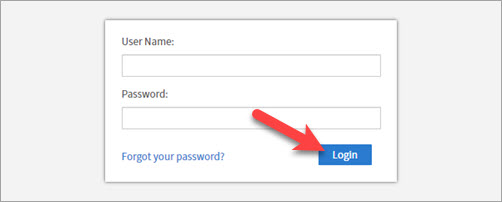
- Log in to VanillaSoft as an Admin.
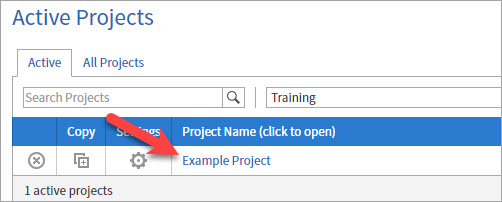
- Select the desired Project.
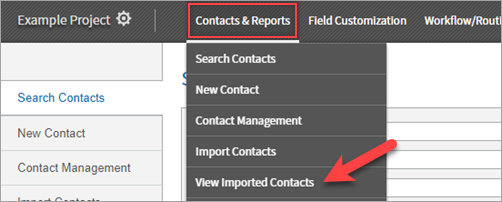
- Open the Contacts & Reports menu and select the View Imported Contacts section.
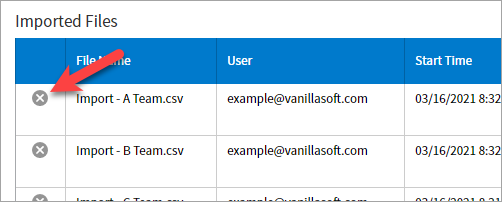
- Click the X beside the import that you wish to delete.
- Click Delete on the confirmation box to commit to the deletion.
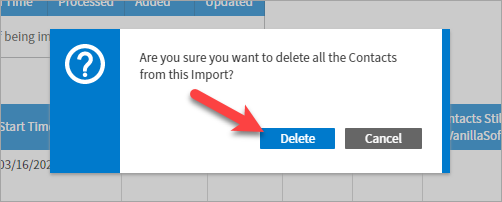
Completing the steps above will delete the desired spreadsheet. You will still see the import information listed, but there will no longer be an X beside it. This means that the import has been deleted, and the contacts are no longer in your database.
Was this article helpful?
Thanks for the feedback. Glad we could help!
Sorry this article didn't give you the answer you were looking for. If you'd like to let us know what was missing, unclear, or anything else that could help us improve it, please share as much or as little detail as you'd like.
In case we need to clarify anything. All feedback is reviewed, whether or not you leave your email.
We read and investigate all feedback, using it to continuously improve our knowledge base.
Thank you for your feedback. If you need further assistance, please reach out to our support team.