Set Up Dialing using Vonage with Analog Desk Phone
Set Up Dialing with Your Vonage Account
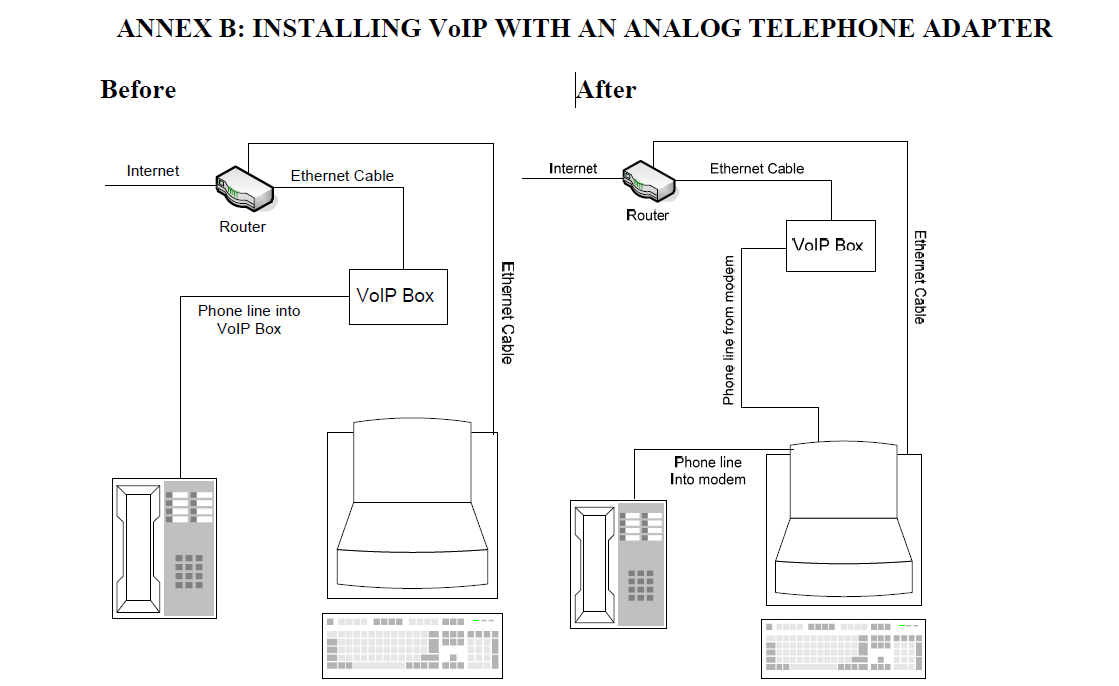
- Unplug the phone from the Vonage converter box.
- Plug the phone into your computer using the dial-up modem port (dial-up modem required).
- If you only have one port, you need to get a splitter.
- Plug a telephone cord into the other port of the splitter or modem, and then plug the other end of the cord into the port in the Vonage box, where the cord was unplugged from. (See image)
- Click on the My Information tab (Admins Make Sure to Switch To Caller).
- Go to Test Controls (refer to the “How to auto-dial” manual found on the right of the Profile page) and then install everything that VanillaSoft asks you to install.
- Once that is done, click on Tools for the Internet Explorer browser and then on the Security tab. Click on Trusted Sites, and then on Sites.
- Add https://*.vanillasoft.net.
- Click OK.
- Click on Custom Level. Scroll down, then enable “Initialize and script Active X controls not marked for safe scripting”.
- Click Apply, then OK.
- Go to the Contact Page and then to the Profile page.
- Put a check in the TAPI box and then find your modem in the drop-down list.
- Click Save, then log off of VanillaSoft, and then log back in.
- Test a number by clicking on the phone icon next to the contact's phone number.
- A box should pop up on the screen prompting you to pick up your phone.
Was this article helpful?
Thanks for the feedback. Glad we could help!
Sorry this article didn't give you the answer you were looking for. If you'd like to let us know what was missing, unclear, or anything else that could help us improve it, please share as much or as little detail as you'd like.
In case we need to clarify anything. All feedback is reviewed, whether or not you leave your email.
We read and investigate all feedback, using it to continuously improve our knowledge base.
Thank you for your feedback. If you need further assistance, please reach out to our support team.